How to Disable Double Conversion in PayPal
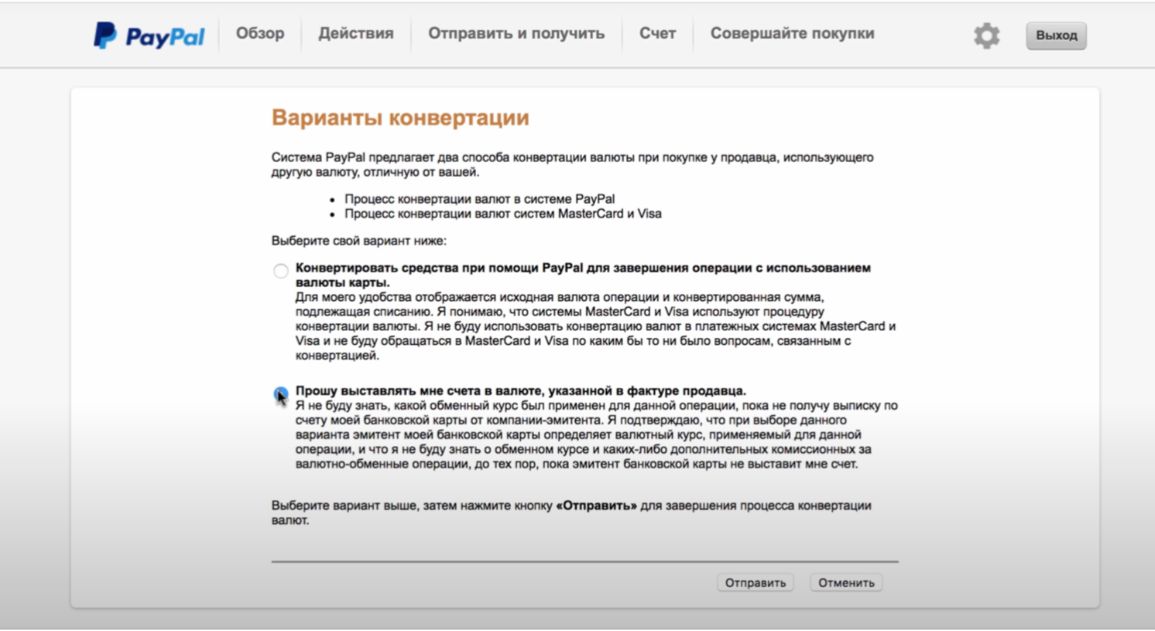
To stop PayPal from recalculating the purchase amount at its own rate, in the card settings select the option "Bill me in the currency stated on the seller's invoice." Then only your bank will convert the currency, and you won't lose out on the double exchange rate difference. Below – five steps with screenshots.
What Is Double Conversion
Say you have a dollar card, and you pay for a purchase in dollars. Everything seems logical, but by default PayPal does something unnecessary: first it converts the amount into the national currency of your account, sends it to the bank, and the bank converts it back into dollars – this time at its own rate. As a result – you lose out on the exchange rate difference. This is especially noticeable with large purchases.
How to disable it – in 2 minutes:
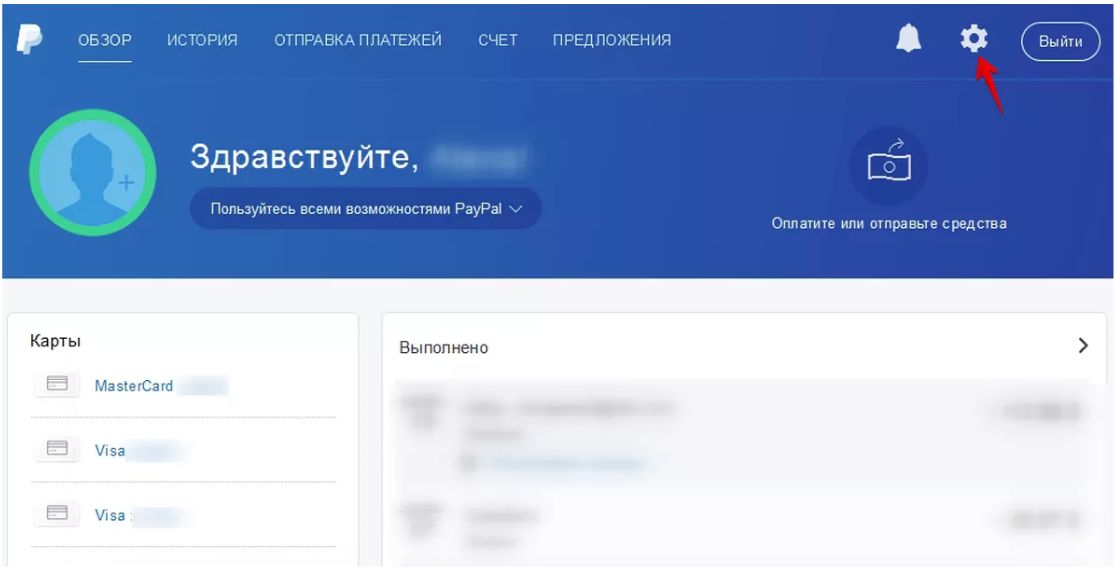
1. Go to PayPal and open “Profile”:
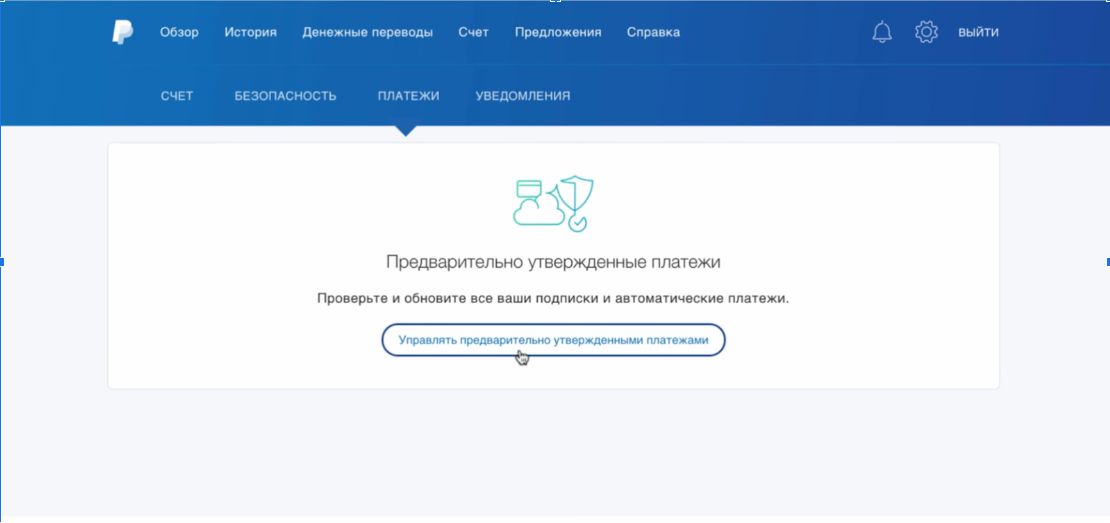
2. Go to the “Payments” section and click the link “Manage pre-approved payments”.
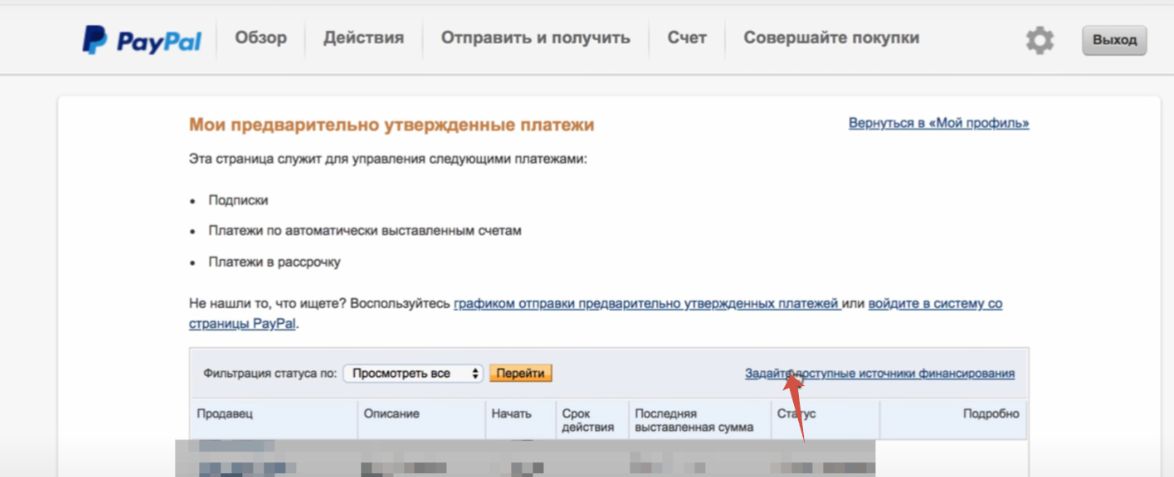
3. Select “Set available funding sources”.
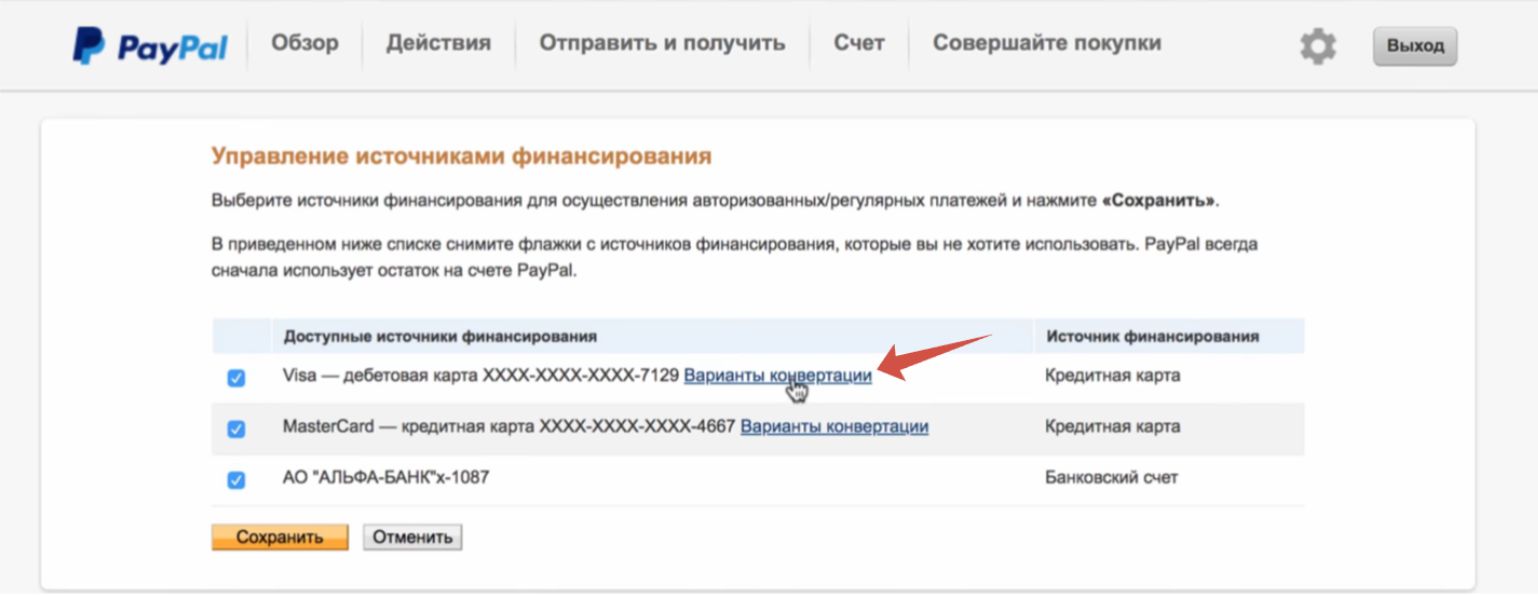
4. In the list of cards linked to PayPal, select the one you need to set up conversion for, and follow the link “Conversion options”.
5. Now all that's left is to choose who exactly will convert the funds – PayPal or your bank. In our case, we choose the second option – “Bill me in the currency stated on the seller's invoice” and click the “Submit” button.